=Page=
greenshot000061.png_linkproduct_setup_stock_product_generalgreenshot000054.png_linkproduct_setup_stock_product_standard_attributesgreenshot000065.png_linkproduct_setup_stock_product_pricinggreenshot000056.png_linkproduct_setup_stock_product_custom_attributesgreenshot000057.png_linkproduct_setup_stock_product_artworkgreenshot000058.png_linkproduct_setup_stock_product_images_and_documentsgreenshot000059.png_linkproduct_setup_stock_product_inventorygreenshot000060.png_linkproduct_setup_stock_product_customer_website
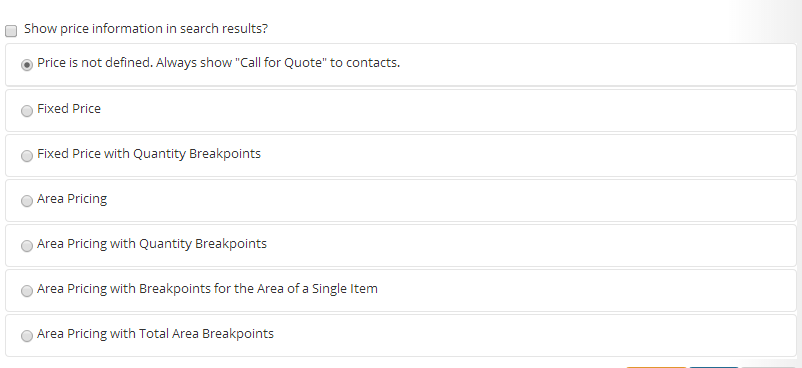
As you can see, there are a lot of options. The first two are the easiest. Do you want the price to show up in the search at all? If not, check that box and move on. Or do you want the price to show up as undefined. Check that and move on.
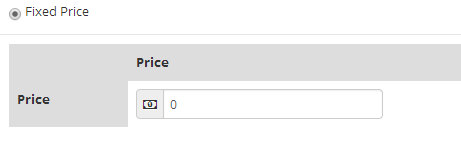
If you want the price to show up as one simple price, check Fixed Price and enter the price.
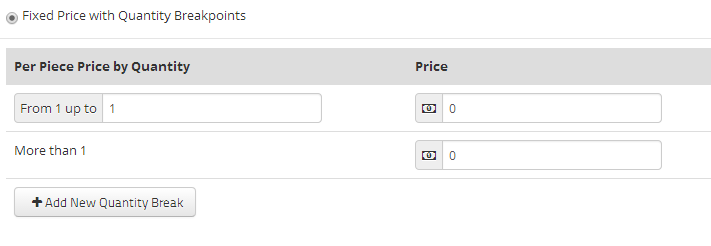
Fixed Price with Quanitity Breakpoints allows you to offer a fixed price based on how many are being ordered.
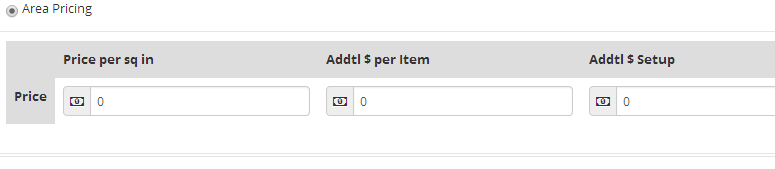
Area Pricing lets you charge based on how big something is. This is great for when you offer multiple sizes. You can have a price per unit, an additional price per item, and a setup charge.
Area Pricing with Quantity Breakpoints is the best of both worlds!
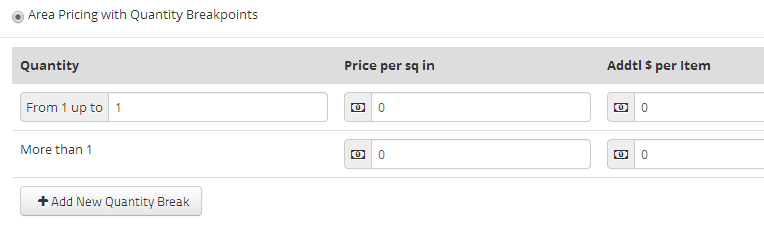
Area Pricing with Breakpoints for the Area of a Single Item may sound complicated, but it isn't. It is just a way to charge per square unit for an item, and have the price change when you cross thresholds.

Area Pricing with Breakpoints for Total Area is the same idea, but your breakpoints are for, surprisingly enough, the total area used.
area_pricing_with_total_area_breaks.png_height250_width1200