=Page=
It is currently displaying the product_catalog Tab. For Information on the other tabs, click the links below.
greenshot000026.png_linkadd_customer_websitegreenshot000016.png_linkcustomer_website_themegreenshot000017.png_linkcustomer_website_images_and_documentsgreenshot000018.png_linkcustomer_website_approvalgreenshot000019.png_linkcustomer_website_currencygreenshot000025.png link="product_catalog"
The product_catalog Is used to specify what Products and Shipping Methods are available for a specific storefront.
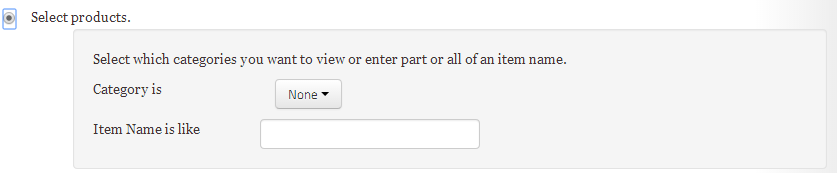
With the Select Products button above checked, you can enter a product tag into the search bar, or filter through all your products by category using the drop down.
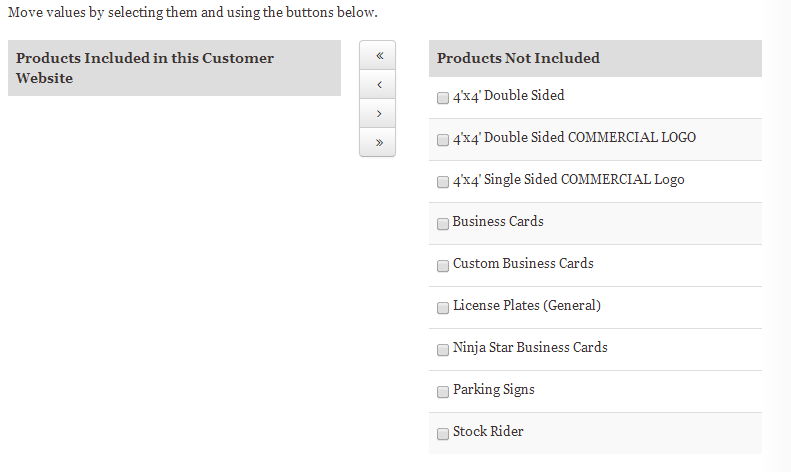
While still keeping the Select Products Box at the top left side of the screen checked, scroll down to the bottom of the page, which should look like the image above. On Right there is a list of all the Products in your Entire Database, and on the Left there is a list of Products that you are selling to this Specific Customer.
- NOTE To move items between “Products Not Included” and “Products Included in this Customer Website”, click the check box next to the image/images that you want transferred, then press the > or < button corresponding with the direction in which you would like them to move. To Change the position of ALL products, press » or > or