The online Designer screen is divided into four regions
- Toolbar
- Canvas
- Quick Text
- Property Editor
odec_sections.png_width600
Toolbar
The toolbar is used to add and remove items from the artwork. Depending on the width of your screen, the toolbar will look like one of these
toolbar_small.png_width500
toolbar_wide.png_width600
The following buttons are available on the toolbar in setup mode. These button may be disabled/removed during the order entry process based on the artwork option settings for the product.
- select.png_width40 Select - The select button is used to deselect any elements that are currently selected and to cancel any add action currently in progress.
- add_line.png_width40 Add Line - Click or touch the Add Line button and then click and and drag on the canvas to create a new line.
- add_square.png_width40 Add Square - Click or touch the Add Square button and then click and and drag on the canvas to create a new square or rectangle. Hint: Hold down the SHIFT key while dragging to force the shape to remain a perfect square.
- add_circle.png_width40 Add Circle - Click or touch the Add Circle button and then click and and drag on the canvas to create a new circle or ellipse. Hint: Hold down the SHIFT key while dragging to force the shape to remain a perfect circle.
- add_stock_image.png_width40 Add Stock Image - Click or touch the Add Stock Image button to show a menu of stock images you can use in your design. Clicking on a menu choice may reveal a sub-menu of choices. When you have selected a menu, the stock images will appear in the property editor. Click on a stock image and drag it onto the canvas to add it to your design.
- add_text.png_width40 Add Text - Click or touch the Add Text button to add a text element to the canvas. The text will be blank but the hint text (“text” initially) will show at 50% opacity. The text element will also be added to the Quick Text list by default.
- upload_image.png_width40 Upload Image - Click or touch the Upload Image button to open the file_upload_screen. From here, images may be uploaded or brought in from one of the asset folder for the business. Only use Supported Image Types inside of artwork.
- undo.png_width40 Undo - Click or touch the Undo button to undo the last action.
- redo.png_width40 Redo - Click or touch the Redo button to “undo” the last “undo”. That is, the Redo button reapplies the action that the Undo button removed.
- preview.png_width40 Preview - Click or touch the Preview button to view a full-screen image of the artwork for proofing.
- delete.png_width40 Delete - Click or touch the Delete button to delete the currently selected element.
- save.png_width40 Save - Click or touch the Save button to save your changes and close the Online Designer.
- cancel.png_width40 Cancel - Click or touch the Cancel button to abort your changes and close the Online Designer without saving.
Canvas
The canvas is the working area for your artwork. The canvas represents the boundaries of your print or sign. Though an element may be partially off the canvas, only the portion on the canvas will be displayed.
To work with an element on the canvas, click or touch the element. Note that during order entry, elements may be locked so that they can not be modified. In this case, users will not be able to select the element.
One an element is selected, the property editor panel will reveal the options specific to that element. See online_designer_-_elements_and_the_property_editor_panel for more information on the specific property editor options for each type of element.
Quick Text
A frequent scenario is for customers who order a lot of similar prints or signs, but each one has slightly customized text. Business cards, door signs, menu boards, real estate signs, etc. are all examples of this common use case. The Quick Text Panel can be used to make it easy for the user to enter or change text without working directly in the canvas or diving down into the Property Editor panel.
The Quick Text Panel lists all text elements by default, though text elements may be removed from this list during product setup. The order of the text defaults to the order in which the text elements were added, though this can be changed during product set up as well.
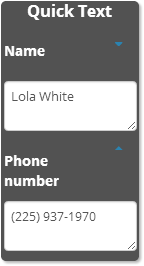
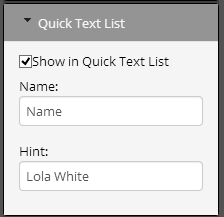
Each Quick Text entry consists of the following options:
- Shown - This option determines if the text is shown on the Quick Text Panel. By default, this is checked.
- Name - This option is used as the label above the input box in the Quick Text Panel.
- Hint - The hint value is displayed when the text is empty. This is helpful to for instructions (e.g., “Enter the Phone Number”) or example (e.g., “(555) 555-1212”). When no text is displayed, the hint text is displayed on the canvas at 50% opacity. This hint text appears in the product artwork and images, but not on image associated with actual orders.
Note: The entire Quick Text Panel can be removed using the Artwork Options for a product. It also does not show up if there are not text elements in the artwork with quick text shown.
Property Editor
The Property Editor Panel allows the user to adjust many of the properties of the selected element, such as color, position, size, border, text, etc. Which properties are shown depends on the type of element that is selected.
See online_designer_-_elements_and_the_property_editor_panel for more information on the specific property editor options for each type of element.